Compress Videos Online for Free
Use the tool below to find the best settings to compress your videos using the Compresss.com tool — no distortion, no watermark, no cost.

Step 1
Enter the current dimensions of the video you want to compress.
Step 2
Enter the final width your video should have after compression.
Step 3
Use the new information found in the box below to compress your video on Compresss.com. If you don't know how to use Compresss.com yet, follow the tutorial below.
Result
Fill in all the fields above to get a final result.
How to use the Video Compressor?
The website Compresss.com offers a free video compression tool. However, it isn't easy to get the best compression result without knowing how to change a video's proportions without distorting the final result. That's why we built this tool — to make this important process easier for many people and businesses.
Tutorial: how to use Compresss.com
Go to the following link: www.compresss.com/compress-video.html.
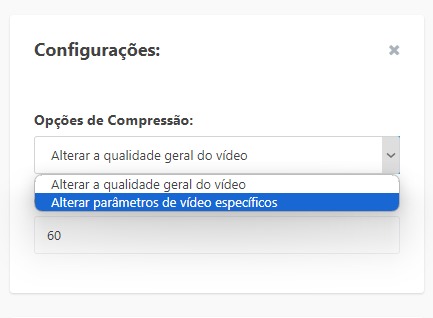
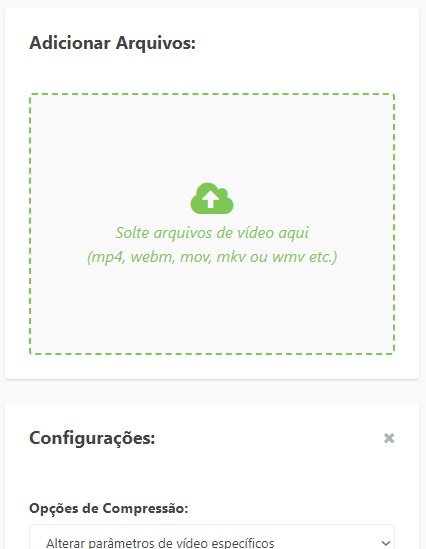
The first step after opening the website is to change the compression settings. In the "Compression Options" section, choose "Change specific video parameters", as shown in the image below.
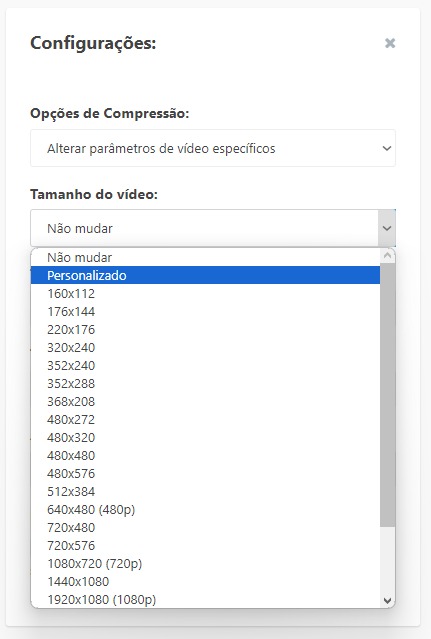
Then choose "Custom" under "Video size", as shown in the image below.
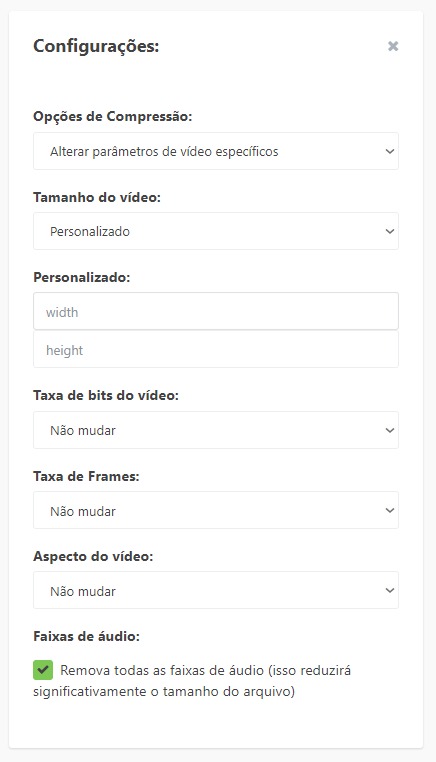
In the fields that appear, enter the new proportions you got from our tool's result box above. Put the "New Width" in the "width" field and the "New Height" in the "height" field. Tip: if you don't need audio in your video, keep the "Remove all audio tracks" option checked — this will make your video much lighter. See the image below for more details.
Done! Now just upload your video in the area shown in the image below and wait for the compression to finish.
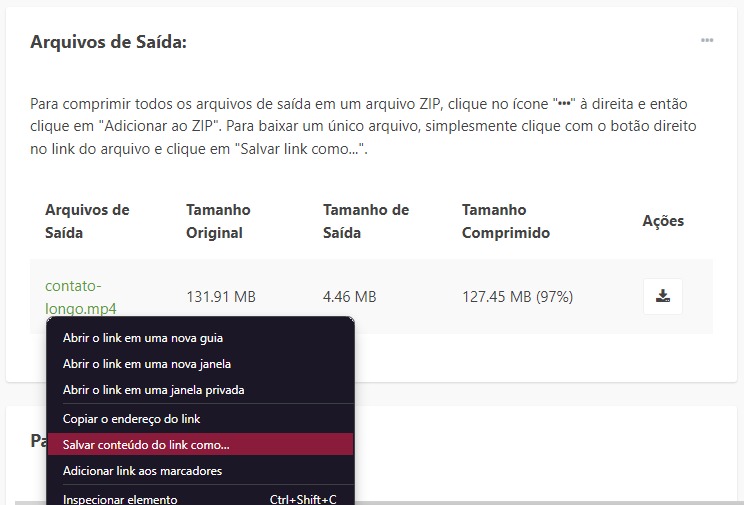
Once compressed, the easiest way to download the video is to right-click the compressed video link and choose "Save link as...", as shown in the image below. Choosing the right settings can dramatically reduce your video file size.