Image Metadata Editor
Add SEO fields, GPS location and EXIF/XMP metadata to JPEG images.
🔒 100% in your browser — no data is ever sent to a server.
Drag a JPEG image here
or select one manually
Import SEO JSON
Select a .json file exported from this tool, or paste its contents below.
Compatible with modern Chrome, Firefox and Safari. Only JPEG files are supported for writing.
How the Image Metadata Editor works
The image metadata editor lets you add and edit information embedded directly in a JPEG file — no need for Photoshop, Lightroom, or any paid software. All processing happens in your browser: no image is ever sent to an external server, guaranteeing full privacy for your files.
Metadata is written using the EXIF and XMP standards — the same ones used by professional cameras, Adobe Photoshop and Getty Images. That means Google, social networks and file managers automatically recognize and read this information.
How to add metadata to a JPEG image — step by step
- 1
Upload the image
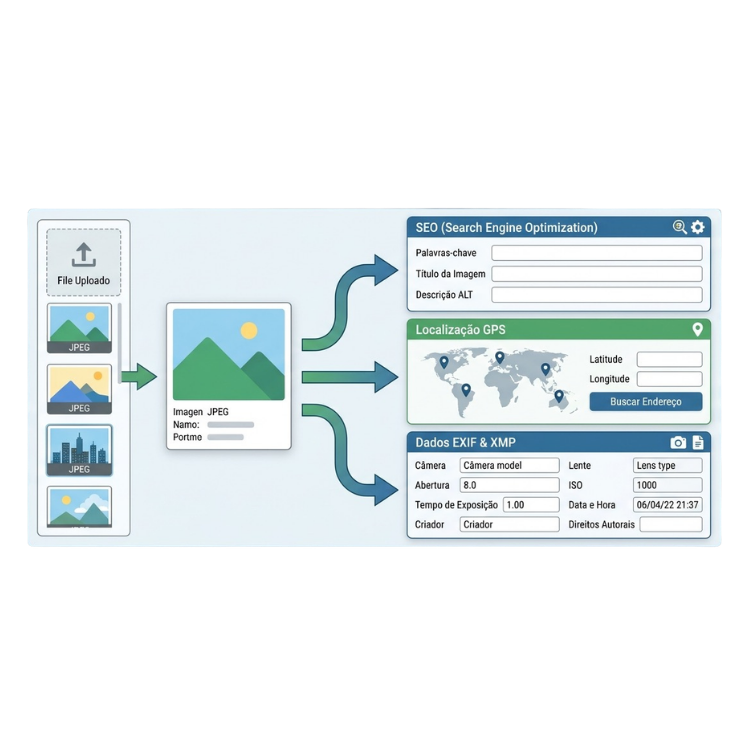
Drag the JPEG file onto the upload area or click "Select file". The tool automatically reads any metadata already present in the photo and fills in the fields.
- 2
Fill in the SEO fields
Add Title, Description, Keywords, Copyright and Artist. These fields are written to the image's EXIF and XMP metadata and are among the main signals Google uses to index and rank images in search.
- 3
Set the GPS location (optional)
Click on the map to mark where the photo was taken. The geographic location is embedded in the EXIF GPS tags and helps Google associate the image with local searches.
- 4
Download the image with metadata
Click "Download image with metadata". The generated file has updated EXIF and XMP data, and the filename is automatically generated from the title you entered — another good SEO practice for images.
Which metadata standards are used? EXIF, XMP and IPTC
The tool writes metadata using two standards widely recognized by Google and by every major image editing and management software:
EXIF (Exchangeable Image File Format)
ImageDescriptionImage description — read by Google and Windows ExplorerXPTitle / XPKeywordsTitle and keywords in UTF-16, Microsoft standardArtistPhotographer or company nameCopyrightCopyright noticeGPSLatitude / GPSLongitudeGeographic coordinates, EXIF GPS IFD
XMP (Extensible Metadata Platform — Adobe/Dublin Core)
dc:titleMain title — indexed by Google Image Searchdc:descriptionFull image descriptiondc:subjectList of keywordsdc:rightsCopyright and licensingdc:creatorAuthor / photographer
Why is image metadata important for Google SEO?
Google Image Search is one of the largest image search engines in the world. To rank well, the algorithm analyzes multiple signals — and metadata embedded in the file is one of them. Here's how each field impacts SEO:
| Field | SEO impact | Read by Google? |
|---|---|---|
| Title (dc:title) | Defines the semantic name of the image; influences image search | Yes |
| Description (dc:description) | Rich keyword context for the crawler | Yes |
| Keywords (dc:subject) | List of relevant terms for indexing | Yes (XMP) |
| File name | Automatically generated from the title (SEO slug) | Yes — strong signal |
| GPS (latitude/longitude) | Associates the photo with local searches and Google Maps | Yes |
| Copyright / Artist | Protects authorship; appears in Google Images | Yes |
Frequently asked questions about image metadata and SEO
Does Google really read EXIF and XMP metadata?
Yes. Google has confirmed it reads XMP metadata, especially the Dublin Core fields (dc:title, dc:description, dc:subject). The EXIF ImageDescription field is also processed. This data helps the algorithm understand the image content, especially when the surrounding page context is insufficient.
What's the difference between alt text and EXIF/XMP metadata?
Alt text lives in the page's HTML and is the strongest signal for image SEO. EXIF/XMP metadata is embedded in the image file itself and is especially useful when the image is shared on other websites, social networks, or stock photo platforms — where the original alt text is lost.
Can I edit metadata on PNG or WebP files?
This tool only supports writing metadata to JPEG files, since the EXIF standard is native to this format. PNG and WebP use different, less widely supported standards. For SEO, JPEG with EXIF/XMP is the format most compatible with crawlers.
Are my images uploaded to any server?
No. All processing happens 100% in your browser, using plain JavaScript. No file is ever uploaded or stored on external servers. This guarantees full privacy, especially for images with sensitive data like GPS location.
How does GPS metadata help with local SEO?
Google uses GPS coordinates embedded in EXIF to associate images with specific geographic regions. This is especially useful for local businesses: a photo with GPS from Chicago has a better chance of appearing in searches like "restaurant near [neighborhood]" or "construction project in [city]".
How many keywords should I put in the Keywords field?
We recommend 5 to 15 relevant keywords, separated by commas. Avoid keyword stuffing (excessive irrelevant terms), since Google may ignore or penalize metadata that looks like spam. Prefer descriptive, specific terms that match the actual content of the image.
Best practices to optimize images for Google
- ✓Use a descriptive title with your main keyword — it also becomes the file name automatically.
- ✓Keep the description between 50 and 160 characters, with rich context about the image content.
- ✓Include long-tail keywords in the Keywords field to capture specific searches.
- ✓Add GPS location for photos of businesses, construction sites or events — it improves local SEO.
- ✓Register the Copyright to protect your authorship and make it easier to trace misuse.
- ✓Combine EXIF/XMP metadata with HTML alt text for maximum ranking impact.